Let visitors opt out of being counted
Plausible doesn't use cookies or store personal data, so there's nothing for your visitors to consent to. Some privacy guidelines still expect visitors to have a way to object to analytics. An opt-out page on your site gives them one. Link to it from your privacy policy.
How the opt-out works
The opt-out page sets a plausible_ignore flag in the visitor's browser localStorage. While the flag is set, the Plausible script doesn't send any pageviews or events from that browser.
- The choice stays in place until the visitor turns counting back on or clears their browser data
- It applies per browser and per domain. A visitor who uses several browsers or devices needs to opt out on each of them
- The opt-out page must be on the same domain as the site it opts out of. If you track several subdomains, each needs its own opt-out page
- The opt-out takes full effect from the next page load. The opt-out page itself was already counted when it loaded, so time spent on that page may still be recorded
Add an opt-out page to your site
We have created a ready-made opt-out page you can use freely on your site. Visitors click one button to opt out, and the same button turns counting back on. There are two versions: one with a CSS stylesheet if you want to use our style, and one without any styling if you'd like to bring your own.
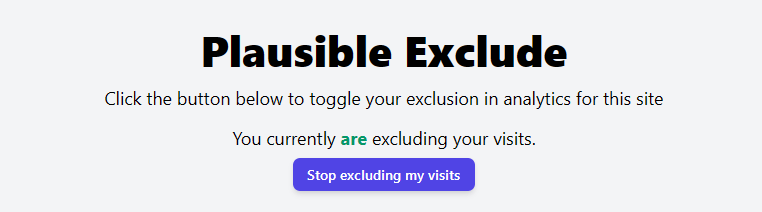
For the styled version, download the HTML file and the CSS file and make both available together on your website. If you'd prefer a light theme, delete the dark class from line 1 of the HTML file.
For the unstyled version, download the HTML file and make it available on your website with any CSS you choose to add.
Then add a link to the page in your privacy policy, for instance: "You can opt out of being counted in our analytics on [this page]."
Check that the opt-out works
Opt out on the page, then visit another page on your site and open the developer tools in your browser (right-click and choose Inspect, or press F12 on Firefox or Chrome or Option+Command+i on Safari). In the Console tab you should see the message "Ignoring Event: localStorage flag". You may need to enable the "Warnings" filter to see it.

Excluding your own visits
To keep your own visits or your team's out of your stats, block your IP addresses in your site settings. That works across all your browsers and devices at once.
If your IP address changes often or you use a VPN, you can set the same flag yourself instead. Open the Console tab in your browser's developer tools on your site, then paste this command and hit enter:
localStorage.plausible_ignore=true
Do this for every domain, subdomain and browser you want to exclude. To be counted again, run:
delete localStorage.plausible_ignore
You can also use the opt-out page above instead of the console.