Ecommerce revenue and attribution tracking
Track which marketing campaigns and landing pages drive the most revenue by assigning monetary values to your custom events.
When you create a new custom event, you can optionally assign a monetary value to it. Our revenue tracking supports multi-currencies too. You can send data in any local currency that the purchase is made in. When using revenue tracking, you'll be able to see these metrics in your dashboard:
- Unique conversions
- Total conversions
- Conversion rate
- Total revenue
- Average revenue
Total revenue shows your overall performance. Average revenue helps you identify which sources or campaigns drive high-value customers rather than just high volume. A source sending fewer but higher-value orders can be worth more than a high-volume source with a low average order value.
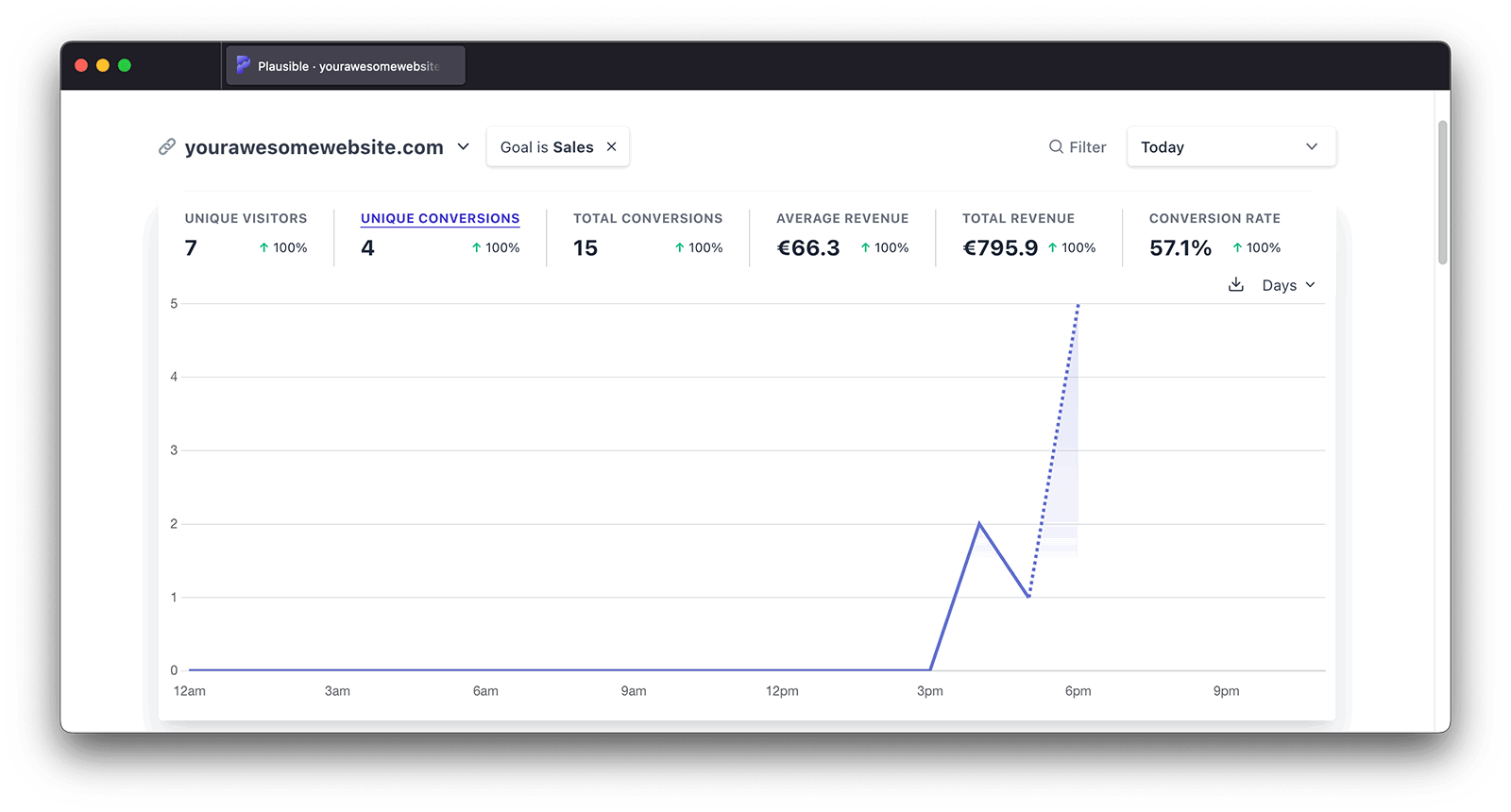
The revenue metrics are fully filterable. For instance, you can see the total or average revenue for a particular custom event per any dimension such as a specific date, referral source, marketing campaign, entry page, country or device.
You can add multiple filters to create audience segments too. This allows you to see the conversions and revenue from for instance the audience segment that's located in Germany, Austria and Switzerland, that were referred by a particular UTM campaign and are using Mac OS.
When the revenue goal filter is applied on the dashboard, you will also find the "Revenue" column appear in all the individual reports (when expanded using the expand icon in the top right). This is useful in seeing the breakdown of your revenue by individual traffic sources, entry or exit pages, locations, browser types and properties. You can also sort your reports by revenue in either ascending or descending order.
Revenue also appears on any funnel step that uses a revenue-enabled goal. The step shows its total revenue alongside the visitor count, and you can hover over it to see the exact revenue and revenue per visitor. If you enable a date comparison, the funnel shows revenue for both periods.
Clean referral source attribution
Payment processors such as PayPal, Stripe and Paddle don't replace the original source of a purchase.
Referral sources are counted only when they start a new visit on your site. A visit continues as long as there are fewer than 30 minutes between a visitor's events. When visitors briefly leave to pay on an external gateway and come back, the gateway doesn't show up as a source, and the original source keeps the credit. If a visitor spends more than 30 minutes on the payment page, their return starts a new visit.
This ensures your revenue is attributed to the marketing campaigns, referral sources and landing pages that actually drove the sale rather than the payment gateway the visitor passed through along the way.
Before you start: what you need
Revenue tracking in Plausible is built on top of custom events. Before setting up revenue tracking, you need:
- The Plausible snippet installed on your site
- A conversion event to attach the revenue value to (typically a purchase confirmation, form submission or upgrade click)
- Access to the revenue amount at the point the event fires: from your checkout page, a thank you page or a server-side callback
If you are tracking revenue on an order confirmation page, the revenue amount needs to be available in the page's JavaScript at the time the event fires. Most ecommerce platforms expose this via a data layer or template variable.
If you plan to send revenue from your server with the Events API, first read how server-side events are attributed. Payment provider webhooks can't be linked to the visit that led to the payment.
If your site uses Google Tag Manager and already pushes a GA4 purchase event, you can send that revenue to Plausible without changing your site. See our GTM guide.
How to track ecommerce revenue
If you want to track ecommerce revenue, here's how to enable it:
Step 1: Add a new custom event and specify the currency of your choice
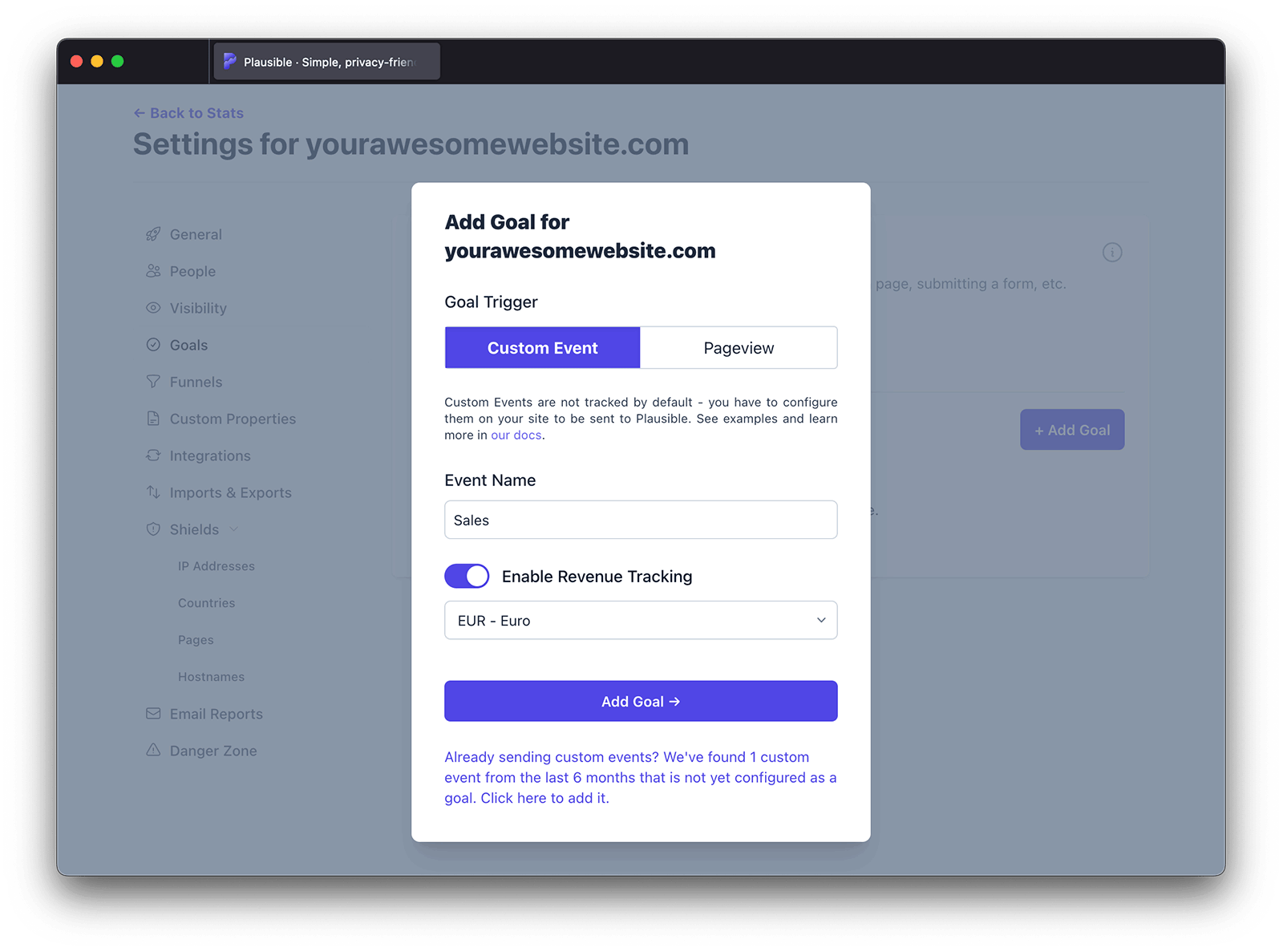
Go to your site settings and in the Goals section click on the Add goal button. Choose Custom event as the goal trigger, enter the goal name in the Event name field, switch to Enable Revenue Tracking and set the base currency of your choice. This currency will be used for total and average revenue metrics in the dashboard. Note that the currency for a specific event cannot be changed later.
Step 2: Send the revenue data from your site
You can now start sending revenue data from your site alongside custom events. You can send the revenue data in the currency that the purchase was made in too and we'll convert it to your goal's base currency.
How to send revenue data depends on the way you've set up custom events. You can either use the CSS class name approach:
<button class="plausible-event-name=Purchase plausible-revenue-amount=10.29 plausible-revenue-currency=EUR"></button>
Or the JavaScript function approach:
window.plausible("goal name", {revenue: {currency: "USD", amount: 10.29}})
Or with track from the NPM package:
track("goal name", {revenue: {currency: "USD", amount: 10.29}})
Or using the Events API directly.
Custom events and revenue goals are listed at the bottom of your dashboard and will appear as soon as the first conversion has been tracked.
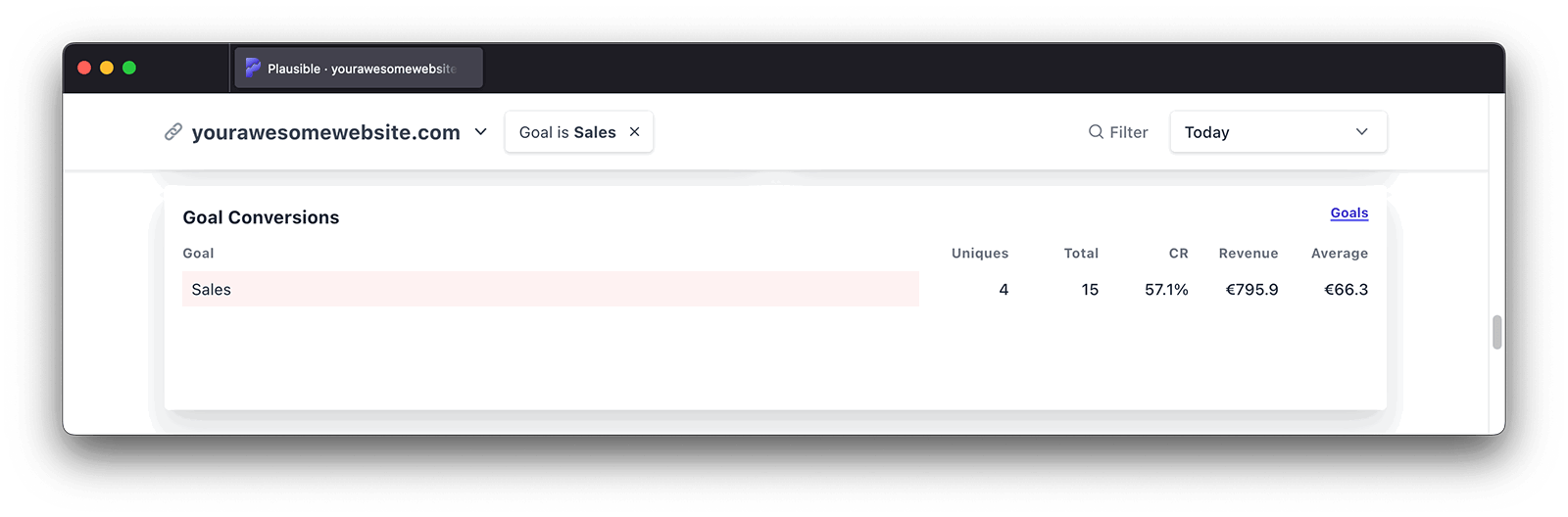
This lets you track product names, coupon codes, if customers are logged in and more. Learn more.
Integrating with WooCommerce
If you're running WooCommerce, our WordPress plugin tracks store activity automatically, including add to cart, completed purchases, revenue, product properties and a purchase funnel. You don't need to set up any custom events or change your store's code.
Integrating with Shopify
If you're using Shopify, you can track checkouts, purchases and revenue with a custom pixel in Settings → Customer events. No changes to your checkout or order status page are needed. See our Shopify guide.
Integrating with Magento
There's a third-party Plausible plugin for Magento that supports custom events and revenue goals tracking. Take a look.
Track payments from Stripe, Paddle, Lemon Squeezy and Polar
If you sell through a hosted or pop-up checkout, the payment happens on the provider's page, not yours. You can still track every completed purchase with a regular revenue goal. You don't need a payment integration, an API key in Plausible or any customer ID. Send one Purchase event when the visitor is back on your site (or when the checkout tells your page it succeeded), with the amount and currency of that order.
Because the event is sent from the same visitor's browser in the same visit, the revenue is credited to the source, campaign and landing page that brought them. Payment providers don't appear as a source.
There are two patterns:
| Checkout type | Examples | Where to send the event |
|---|---|---|
| Redirect: visitor leaves your site and comes back | Stripe Checkout, Stripe Payment Links, Stripe Payment Element with redirect, Polar checkout links | On your success page |
| Overlay / embedded: checkout opens on top of your page | Paddle.js overlay or inline, Lemon Squeezy overlay | In the checkout's success callback |
Plausible expects the amount in the main currency unit (49.00, not 4900) and an uppercase ISO 4217 currency code (EUR, not eur). An invalid currency code doesn't cause an error: the event is recorded but the revenue is dropped.
| Provider | Amount field | Unit | Currency field |
|---|---|---|---|
| Stripe Checkout Session | amount_total | cents (minor unit) | currency, lowercase |
| Stripe PaymentIntent | amount | cents (minor unit) | currency, lowercase |
Paddle.js checkout.completed | data.totals.total | main unit (e.g. 32.66) | data.currency_code, uppercase |
| Lemon Squeezy order | attributes.total | cents | attributes.currency, uppercase |
| Polar checkout | total_amount | cents, after discounts and taxes | currency, lowercase |
Use this helper to convert amounts from Stripe, Lemon Squeezy and Polar:
// Zero-decimal currencies don't use cents (see https://docs.stripe.com/currencies#zero-decimal).
// Stripe also lists UGX there, but it is sent and returned as a two-decimal value (x100), like ISK,
// so both are left out on purpose.
var ZERO_DECIMAL = ['BIF','CLP','DJF','GNF','JPY','KMF','KRW','MGA','PYG','RWF','VND','VUV','XAF','XOF','XPF']

function toPlausibleRevenue(minorAmount, currency) {
  var code = currency.toUpperCase()
  var amount = ZERO_DECIMAL.indexOf(code) > -1 ? minorAmount : minorAmount / 100
  return {amount: amount, currency: code}
}
Stripe Checkout and Payment Links
- Make Stripe send visitors back to your site. For Checkout Sessions, set
success_url. For Payment Links, open After payment, choose Don't show confirmation page and enter your URL. If customers stay on Stripe's own confirmation page, there's nothing to track. - Add Stripe's
{CHECKOUT_SESSION_ID}placeholder to that URL. Stripe replaces it with the real ID when it redirects:https://example.com/thank-you?session_id={CHECKOUT_SESSION_ID} - On your server, look up the Checkout Session and add the event to the page only when money was actually charged. Subscriptions that start with a free trial are completed at €0, so send a separate
Trial startedevent for those instead of a €0 purchase:
// Node.js / Express example
app.get('/thank-you', async (req, res) => {
  let revenue = null
  let trialStarted = false
  if (req.query.session_id) {
    const session = await stripe.checkout.sessions.retrieve(req.query.session_id)
    // 'paid' = money received. Delayed methods such as SEPA Direct Debit return 'unpaid' here
    // and become paid later, so they are not counted by this page.
    if (session.payment_status === 'paid' && session.amount_total > 0) {
      revenue = toPlausibleRevenue(session.amount_total, session.currency)
    } else if (session.mode === 'subscription' &&
               (session.payment_status === 'paid' || session.payment_status === 'no_payment_required')) {
      // A free trial (the $0 trial invoice) or a subscription billed later: nothing was charged yet
      trialStarted = true
    }
  }
  res.render('thank-you', {revenue, trialStarted})
})
<!-- thank-you template (EJS shown). In other template engines, output the same
     JSON.stringify() values with that engine's unescaped-output tag. -->
<script>
  var revenue = <%- JSON.stringify(revenue) %>
  var trialStarted = <%- JSON.stringify(trialStarted) %>

  if (revenue) {
    plausible('Purchase', {revenue: revenue})
  } else if (trialStarted) {
    plausible('Trial started')
  }
  // Remove the session ID so a reload doesn't send the purchase again
  history.replaceState(null, '', location.pathname)
</script>
Add Trial started as a regular custom event goal (without revenue) if you offer free trials. The upgrade to paid happens later. See SaaS: trials and upgrades that happen in a later visit.
No backend? For Payment Links with a fixed price, put the price in the redirect URL of each payment link instead, e.g. https://example.com/thank-you?amount=49.00¤cy=EUR. Then add this to the thank-you page:
<script>
  var params = new URLSearchParams(location.search)
  if (params.get('amount')) {
    plausible('Purchase', {revenue: {amount: params.get('amount'), currency: params.get('currency')}})
    history.replaceState(null, '', location.pathname)
  }
</script>
This records the list price, not discounts or taxes, and anyone can edit the URL. For exact amounts, use the server lookup above. Plausible doesn't store these URL parameters. Don't name them ref or source, as those are read as traffic sources.
Stripe Payment Element
After stripe.confirmPayment(), Stripe redirects to your return_url and adds payment_intent_client_secret to it. On that page:
var params = new URLSearchParams(location.search)
var secret = params.get('payment_intent_client_secret')

if (secret) {
  stripe.retrievePaymentIntent(secret).then(function (result) {
    var pi = result.paymentIntent
    // 'succeeded' = paid. 'processing' (bank debits and other delayed methods) is not counted here,
    // because the payment can still fail.
    if (pi && pi.status === 'succeeded') {
      plausible('Purchase', {revenue: toPlausibleRevenue(pi.amount, pi.currency)})
    }
    history.replaceState(null, '', location.pathname)
  })
}
Payments with delayed confirmation (for example bank debits) come back as processing and can still fail, so this page doesn't count them. If they matter to you, track them from a server-side webhook with the Events API. Those events can't be attributed to a traffic source.
If you use redirect: 'if_required', card payments don't redirect. confirmPayment() resolves with the paymentIntent instead, so send the same event there.
Paddle (overlay and inline checkout)
Paddle.js emits a checkout.completed event after a successful payment. Add an eventCallback where you initialize Paddle:
Paddle.Initialize({
  token: 'live_...', // your client-side token
  eventCallback: function (event) {
    if (event.name === 'checkout.completed') {
      plausible('Purchase', {
        revenue: {amount: event.data.totals.total, currency: event.data.currency_code}
      })
    }
  }
})
Paddle.js totals are already in the main currency unit, so don't divide by 100. This also works with successUrl, as Paddle fires checkout.completed before redirecting to your success page.
Lemon Squeezy (overlay checkout)
A subscription with a free trial completes with a total of 0, so the snippet sends Trial started for it instead of a €0 purchase. Renewals are charged by Lemon Squeezy later and never pass through the visitor's browser, so they aren't tracked here.
window.createLemonSqueezy()
LemonSqueezy.Setup({
  eventHandler: function (event) {
    if (event.event === 'Checkout.Success') {
      // The order is at event.data.order.data.attributes. The fallbacks cover older event shapes.
      var d = event.data || {}
      var order = (d.order && d.order.data) || d
      var attrs = order.attributes || order
      if (attrs.total > 0 && attrs.currency) {
        // total is in cents
        plausible('Purchase', {revenue: toPlausibleRevenue(attrs.total, attrs.currency)})
      } else if (attrs.total === 0) {
        // Subscription with a free trial: nothing charged yet
        plausible('Trial started')
      }
    }
  }
})
Polar
Set your checkout link's Success URL to a page on your site and add checkout_id={CHECKOUT_ID}. Polar replaces it with the checkout ID. If you leave the Success URL empty, customers stay on Polar's confirmation page and nothing can be tracked. On your server, fetch the checkout with that ID and send toPlausibleRevenue(checkout.total_amount, checkout.currency) the same way as in the Stripe example. For embedded checkouts, let Polar redirect to the success URL and track there. Polar's success event doesn't include the amount.
Add a custom property such as plan, billing_period or product to the Purchase event to compare revenue by product. Don't send email addresses, customer IDs or order IDs. Plausible doesn't need them, and custom properties must not contain personal data.
Revenue tracking strategies
One purchase event vs. per-product events
The simplest approach is a single Purchase event with the total order value. This gives you clean revenue totals, referral attribution and conversion rates without complex setup.
If you need to break down revenue by product type, category or subscription tier, use custom properties alongside the revenue event. For example:
plausible('Purchase', {revenue: {currency: 'USD', amount: 49.00}, props: {plan: 'Pro'}})
This lets you filter the revenue report by plan to compare revenue from different product lines.
Where to fire the event
Fire the revenue event on your order confirmation or thank you page, not on the checkout button click. Firing on button click captures intent but not completed purchases, which inflates revenue figures and makes attribution misleading.
For subscription upgrades, fire on the confirmation page after payment is processed, not when the user selects a plan.
Count each purchase only once
Thank-you pages get reloaded, bookmarked and reopened. Every time the purchase event fires again, it adds another conversion and more revenue. Use one of these:
- Remove the trigger from the URL after sending. If your page sends the event only when the URL carries a checkout ID or amount, call
history.replaceState(null, '', location.pathname)right afterplausible(...). A reload then has nothing to send. No storage needed. - Send from a callback, not a page. Overlay checkouts (Paddle, Lemon Squeezy) fire their success callback once per payment.
- Ignore old checkouts on the server. When you look up the payment on your server, skip the event if the payment was created long ago (for example, Stripe's Checkout Session
createdtimestamp is more than an hour old). - Mark the order in your own store. If you already keep orders in a database, you can mark an order as tracked the first time the thank-you page renders, like our WordPress plugin does for WooCommerce orders. Nothing extra is sent to Plausible.
What revenue tracking measures (and what it doesn't)
Plausible revenue is the value of purchases completed during a visit to your site, credited to the source, campaign and pages of that visit. It's built for one question: which marketing brings in paying customers.
It deliberately doesn't link a person across visits or devices, so some payments can't be connected to a visit:
- Subscription renewals and later upgrades happen in your billing system, not on your site
- Refunds and chargebacks happen days or weeks later
- Delayed payment methods (SEPA Direct Debit, bank transfers, vouchers) may only be confirmed after the visitor has left. If you track on the success page, decide whether to count payments that are still pending
- Purchases made without visiting your site, e.g. a payment link shared by email, unless the link redirects to your site afterwards
Connecting these to a visit would require storing a persistent identifier for each customer, which Plausible doesn't do. Expect Plausible revenue to be lower than the revenue in Stripe, Paddle or your accounting tool. Use your billing tool for MRR, churn and refunds. Use Plausible to see which channels and pages bring in first purchases, and to compare them by conversion rate and average order value.
Don't send renewals or refunds to the Events API from webhooks. Without a matching visit, they add visits credited to Direct / None or are dropped as data-center traffic (see how server-side events are attributed).
SaaS: trials and upgrades that happen in a later visit
Plausible credits revenue to the visit in which the payment happens. If people start a free trial and upgrade days later, that later visit usually comes in as Direct / None or starts inside your app. The campaign that brought them doesn't get the revenue.
- Make the trial start your attributed conversion. Add a
Trial started(orSignup) custom event goal, without revenue, and compare sources and campaigns by its conversion rate. If your checkout starts a trial without charging anything (Stripe and Lemon Squeezy report these as paid with a total of 0), sendTrial startedinstead of aPurchase. The Stripe and Lemon Squeezy examples above already do this. - Don't send €0 purchases. A
Purchasewith an amount of 0 still counts as a conversion and pulls your average revenue down. - Track the upgrade for totals by plan. Send
Purchasewith the amount when the customer pays, for example on your in-app billing success page, with a custom property such asplan. You'll see total and average revenue per plan, credited to the visit where they paid. - Use your billing tool for trial-to-paid rates, MRR and churn. Plausible doesn't connect the trial visit to the later payment, because that would need an identifier for each person.
Troubleshooting revenue tracking
Revenue not showing in the dashboard
- Check that the goal name in your Plausible site settings matches the event name exactly (case-sensitive)
- Confirm the
revenueobject uses the correct format:{currency: 'USD', amount: 49.00}. The amount can be a number or a numeric string (49.00or"49.00"). It must be in the main currency unit, not cents - Use your browser's Network tab to verify the event is being sent. Look for a request to
plausible.io/api/eventand check the payload includes the revenue data - If you are using a proxy, confirm the proxied endpoint is receiving and forwarding the full event payload
Revenue amount is wrong
- Check that the amount is in the major currency unit (49.00 for $49, not 4900 for cents)
- Stripe, Lemon Squeezy and Polar give amounts in cents. Divide by 100, except for zero-decimal currencies such as JPY. Paddle.js already gives the main unit
- If you see duplicate revenue, check for multiple Plausible snippets on the page or the event firing more than once on page load. See how to count each purchase only once
- For multi-currency stores, send each purchase’s actual amount and currency. Plausible automatically converts the amount into the goal’s reporting currency for total and average revenue.
Currency code format
Use standard ISO 4217 codes: USD, EUR, GBP, SEK and so on. Incorrect codes will cause the event to be recorded without revenue data. Codes must be uppercase. Stripe returns lowercase codes (eur), so convert them with .toUpperCase(). An invalid code doesn't return an error.
What's next?
- Set up a funnel to measure drop-off from landing page to checkout
- Explore open-ended purchase paths with user journeys to see what visitors do before buying
- Use custom properties to break down revenue by product name, category or coupon code
- Filter and segment your dashboard to see revenue by source, campaign, country or device
- Query revenue data programmatically using the Stats API
- Use the ad cost calculator to calculate your CPC, CPM and CPA by dividing your ad spend by the conversions Plausible records
Learn more about tracking ecommerce revenue attribution on our blog.